The Problem:
We have a customer with an office located in Brisbane, Australia, who has a pretty standard setup – Windows 11 Laptops, Cisco Networking, ZScaler for Internet Security, Ethernet to every desk, a common IT SOE.
However, a couple of weeks ago we started seeing hints of an issue with some of the laptops, users were reporting that their device timezone kept changing to Adelaide (which is 2 hours behind), and then back to Brisbane randomly.
This seemed like just a temporary thing at first, but it started getting worse, it went from 1 to 2 laptops, to 5, to 10, to the whole office, it was obvious something had gone wrong, so I started looking into it.

How are Timezones automatically updated on Windows?
You ask a Desktop Support guy this question, and they’d probably say “oh it’s from AD/GPO”, or “it’s from the NTP server”, or “it’s from the switch/DHCP server”, but is that actually true? – Nope – Turns out Windows Exclusively uses location for automatic Timezones.
Specifically, the below are used:
- GPS : accurate within approximately10 meters. You won’t find many (if any) corporate laptops with GPS built-in, so I haven’t spent much time poking at this path.
- Wi-Fi : accurate within approximately30 meters – 500 meters. This method works by scanning the surrounding Network at all times when Wi-Fi is turned on (even if you aren’t actually connected to Wi-Fi), Windows also doesn’t care if you are using Ethernet, it will still scan. There is ZEROpublic documentation of the “algorithm” or “scoring logic” that Windows uses for this, we just know that it looks at nearby BSSID’s (usually the same as the MAC address, though Microsoft only ever calls them MAC’s) then checks the Microsoft geolocation databasewhich we aren’t allowed to even see – at least not anymore.
- Cell towers : accurate within approximately 300 meters – 3,000 meters. This is a good one, it might not be the most precise, but it’s highly likely to be accurate, of course this is only available on devices with a cellular modem, however it apparently does not require an active service or even a SIM card, it uses the Microsoft Geolocation Database similar to the Wi-Fi method.
- IP address: accurate within approximately 1,000 meters – 5,000 meters. As many IT folks know, IP‑based location services aren’t very precise and can be wrong at times – IP addresses change often, and IP‑to‑location databases quickly become outdated. Microsoft maintains its own database for this, but in my experience, Windows only falls back to it when WI‑Fi based location is low-confidence/accuracy.
The system automatically selects the most appropriate location source based on availability, accuracy requirements, and power consumption considerations. – Microsoft
How Timezones are NOT updated on Windows:
- NTP – So the thing about Network Time Protocol, is it has zero concept of timezones, it uses UTC time, always, it leaves timezone settings up to the OS of the client. Interestingly, Windows actually uses UTC behind the scenes for everything and just applies your timezone offset to stuff that is user facing, who knew.
- Active Directory – AD actually has a protocol for syncing time from DC’s that is built off of (but also distinct to) NTP, it’s barely documented, but it’s called MS-SNTP. MS-SNTP is enabled by default in AD for all clients, exceptif you are running under a hypervisor (then Windows shrugs and uses the HV), but both will neverset timezones, only time.

- DHCP – If you are well versed in DHCP options, you may know about option 101, which allows you to configure a timezone to be available from DHCP. However, rather annoyingly, Windows won’t ever request this option from the DHCP server, not on its own. There’s a good doc here about getting Windows to pull this from DHCP and actually use it, but by default the data never goes to the Windows client, so… nope.
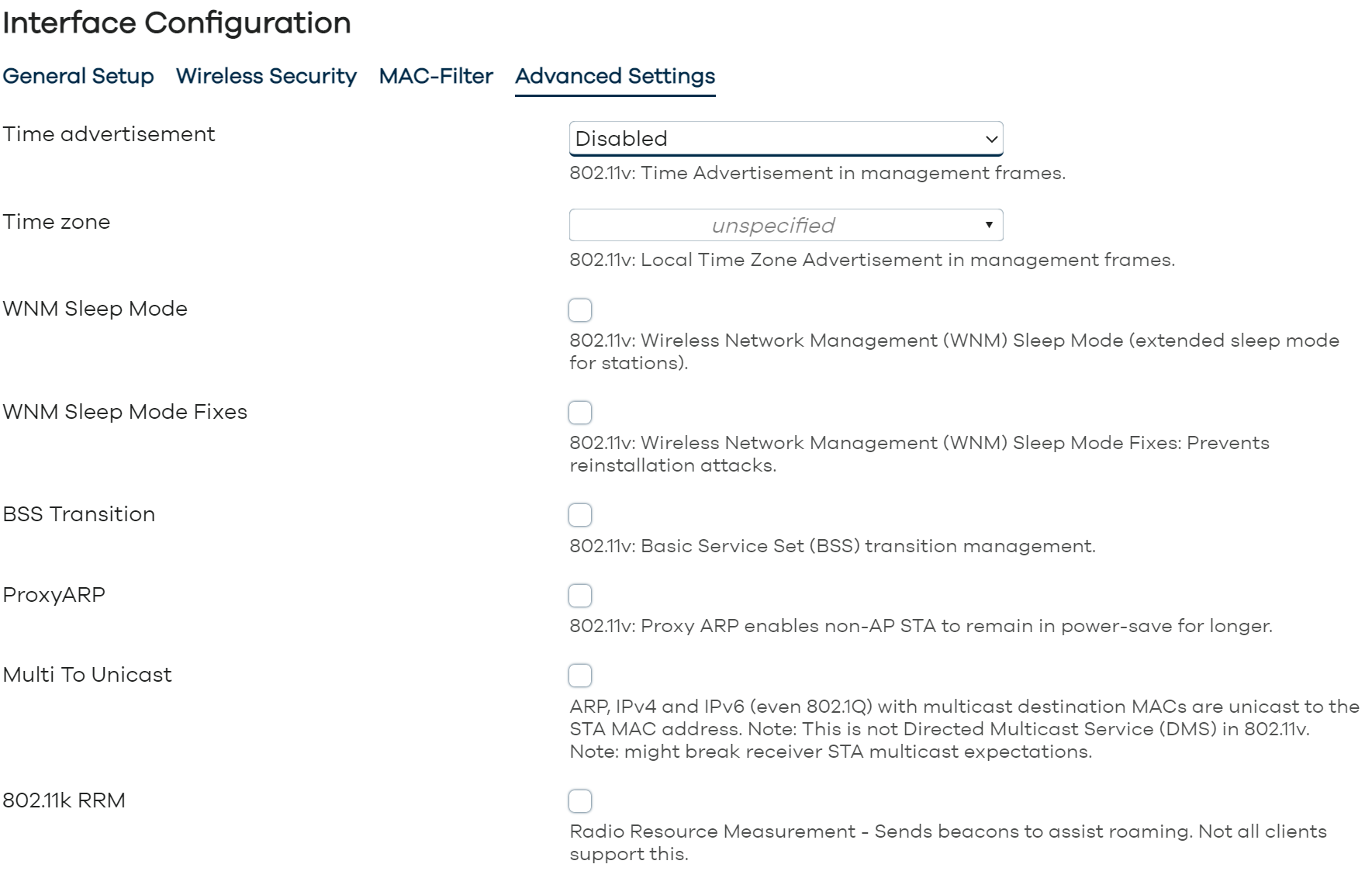
- Network switches/firewalls – Fairly obvious, these don’t play any part in Timezones being set, if a switch clock is set to Antarctica it doesn’t matter (looking at you network engineers). Similarly to DHCP, the 802.11v protocol does have some capability to advertise timezones (from WAP’s in this case), but this is rarely implemented in networking hardware, OpenWRT appears to support it, but Windows does not use it anyway.
- Group Policies/Intune – Timezones are rarely set by Group Policy, it would only make sense if you have a single office location and/or had a robust policy that applied based on user/device location. We haven’t seen any customers with a setup like this, so in 90% of cases I would immediately rule out any policies as being the source of your device Timezones. That being said, it can be done.
So what’s causing our problem?
This is the tricky part, figuring out what location source Windows is getting the wrong information from.
Let’s start with logs, in addition to the notification the user gets, the following event is logged (event ID 1). As you can see, the change is coming from svchost.exe, so this is almost certainly the “Auto Time Zone Updater” service completing its regular check-in.

Alright, so we know when changes are happening, but we don’t know why. Let’s check for more logs, right? – Nope. This is it.
Windows keeps its location tracking methods close to the chest. It won’t tell you which source it used, and it offers no real diagnostics. So when something goes sideways, we’re essentially on our own.
Screw it, I’ll make my own troubleshooting tool.
I wasn’t going to sit in front of a laptop all day, wait for the device timezone/location to be wrong and then quickly troubleshoot for the few minutes I had each time, there had to be a better way.
So I spun up PowerShell ISE and wrote a script to monitor the issue and collect data for troubleshooting. This is what is does:

It’s fairly barebones, it uses GeoCoordinateWatcher to pull coordinates, looks them up against OpenStreetMap, and simultaneously scans nearby access points with netsh to capture BSSIDs. It grabs this data every 15 seconds. It’s a bit of a patchwork tool, and there’s plenty of room for refinement, but it collected exactly what I needed.
So I found a few affected users, set it to run quietly in the background, and logged about an hour’s worth of data.
Before I wrote this script, I had a hunch that the issue was somehow ZScaler related, since they don’t have any Brisbane datacentres (at least with our contract right now) and our egress IP through ZIA appeared in Sydney. We raised a ticket with them early on, (because it couldn’t hurt) and 2 days later got a response from them.
We have confirmed that this issue is not related to Zscaler, as Zscaler does not set or modify user timezones.
we recommend checking with your internal IT team, specifically focusing on your Windows/Active Directory (AD) settings, as these are the most likely sources of the timezone changes.
It seems that they didn’t really understand the issue, which was a common problem when trying to get any engineering/vendor help on this. If our Timezone was changing to Sydney instead of Adelaide, we would have pushed them further as this would be directly caused by ZIA.
Anyway, from my script it was pretty clear that the public IP address was not changing at all, which ruled out ZScaler, and based on the accuracy field, it aligned perfectly with the Wi-Fi scanning accuracy expected in metres.
So if we disable Wi-Fi it should stop scanning, and we can see if the issue goes away? Yep, I turned off WLAN on the affected devices and none of them changed their location from Brisbane, perfect.
So this means that Microsoft’s Wi-Fi location database is wrong for this location, but if that’s the case it should be affecting the business next door too, right?
So I spoke to the IT team from the business next door, and confirmed that they have the exact same issue, with Adelaide as well, and they have a completely separate network to us, wild.
Now, how do we fix this?
Well, for most customers, it’d be pretty simple, just disable automatic Timezones on Windows, you could push this via Intune or GPO pretty easily, it’s well documented.
For our customer, though, this wasn’t a valid option, for these reasons:
- Users travel a lot as part of their roles, and the customer would like Timezones to be automatically updated for them.
- Users are not comfortable managing the system Timezone themselves.
- Service Desk don’t have the capacity to be fielding calls for incorrect system times.
- The customer would like the core issue to be resolved rather than using a band-aid solution (fair enough).
Let’s get Microsoft to fix the Geolocation Database.
This is the next logical step, log a support ticket with Microsoft, tell them the problem, give them any data they need, and they should be able to fix it just fine, people seemed to have luck with this, though apparently it’s quite a long and painful process.
So we logged an MS ticket, SEV B (as we’ve since had a second location affected), and we’ll see where it goes.
Thank you. Your request was successfully submitted to Microsoft Support.
I’ll update the article once we hear back from Microsoft.
What else can we do?
Well, there’s a few things you can try.
- If you have an Android device, you can apparently run this app and walk around your building for 10 minutes, a poster claimed that this resolved the geolocation database issue for Windows about 2 weeks later.
- You could set up windows to use a different geolocation database from the Microsoft one, this wasn’t feasible for us as it’s a bit too hacky, and we’d end up in a 6 week long conversation about which database to use.
- You could swap your entire laptop fleet to models that include Cellular radios and/or GPS (good luck).
- You can configure a “Default Location” on Windows via settings, which can override the location provided by Windows other built-in location providers, however documentation from Microsoft here is very lacking. All Microsoft says is that this is used “when a more exact location can’t be detected”, maybe it just applies in low confidence/accuracy scenarios then, we don’t know. It also doesn’t appear to be possible to configure this via a policy, as the data is seemingly not stored in the registry and can’t be identified by Process Monitor.
- You can request to exclude the nearby WAP’s BSSID’s from the Microsoft geolocation database, which I’m not sure is even legal if you don’t own all the nearby hardware. Microsoft may completely ignore your request “if it seems problematic”, and apparently, this also isn’t a permanent fix.
- If you have patience, you could wait for the issue to resolve itself. No, seriously, the database gets updated by Windows devices all the time as they scan the area, so eventually it might just be fixed. Logically, if you have a Windows device with cellular and/or GPS in the area, the location accuracy should also improve, and faster.
- If your users onlytravel between different company offices, you could configure Timezones via DHCP and force Windows to use them, but this would only work on yourNetworks and would need manual intervention from users/IT anywhere else.
- If users workflow allows, you could disable Wi-Fi entirely, to force Windows to rely purely on IP based location, if you use a proxy/internet security service like ZScaler though you’ll need to make sure the egress IP is in the desired Timezone.
- You can always build your own geolocation database, perhaps make a policy/script that has a list of known IP addresses, SSID’s, whatever you like and force timezones from that, however this is only possible if you know every location that a user might need to work from.
- The last option is to just deal with the issue, if it’s not that impactful to your environment then you can choose to ignore it.
And that’s it.
As of writing this, our problem is ongoing, we’ve passed the issue on to Microsoft and once we hear back I’ll update this article. Our customer isn’t particularly interested in any of the available workarounds, so that leaves us standing around, for now.
Leave a Reply